
Purchasing
Drop the invoice in. Stop typing it in.
SubbieTRAC reads a supplier’s invoice into the bill for you, flags the duplicates, and keeps every bill, payment and order against the job it belongs to.
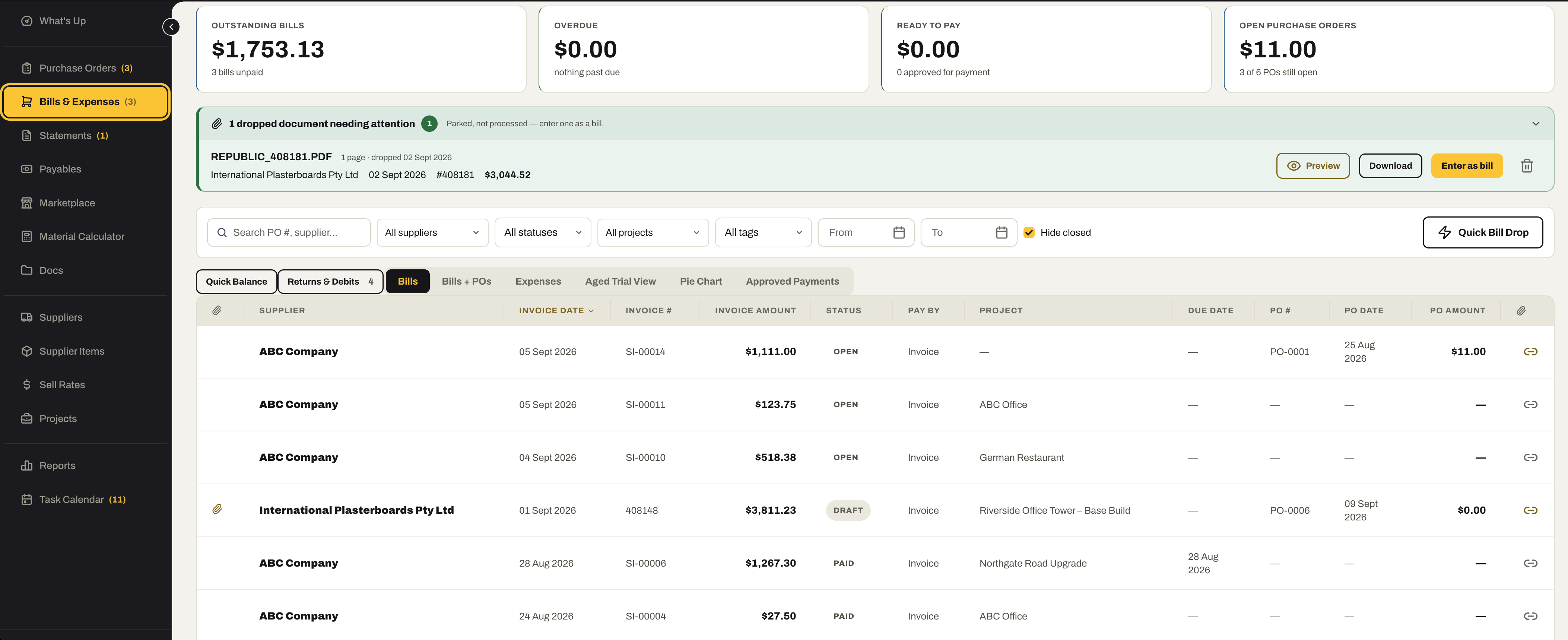
01 / Bills
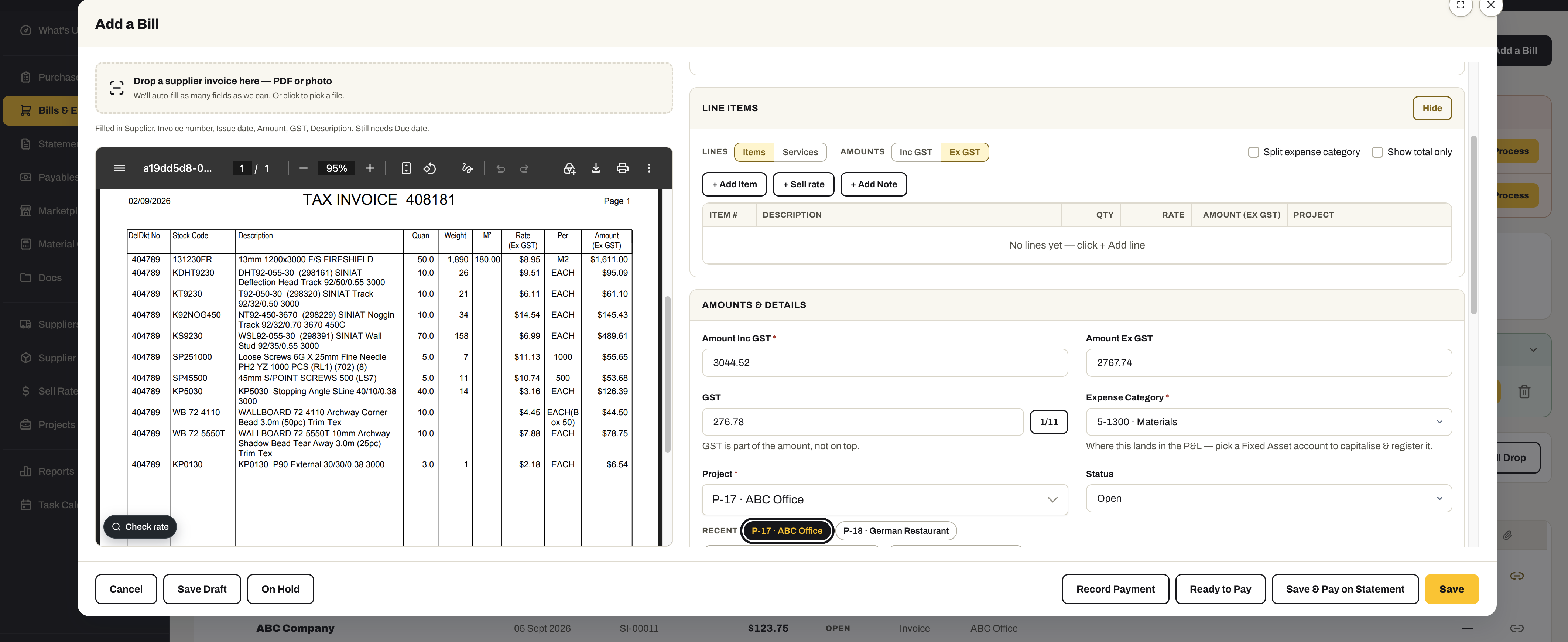
Drop the invoice. The form fills itself.
Supplier invoices arrive all month. Drop them in as they come — SubbieTRAC reads each one into a bill in the background, and you check it and save when you are ready.
- Quick Drop — park the paperwork now, process it later
- Each invoice read into the bill form: supplier, date, lines, GST, total
- Duplicates flagged before they are entered twice
- You check the form and save it — nothing posts on its own
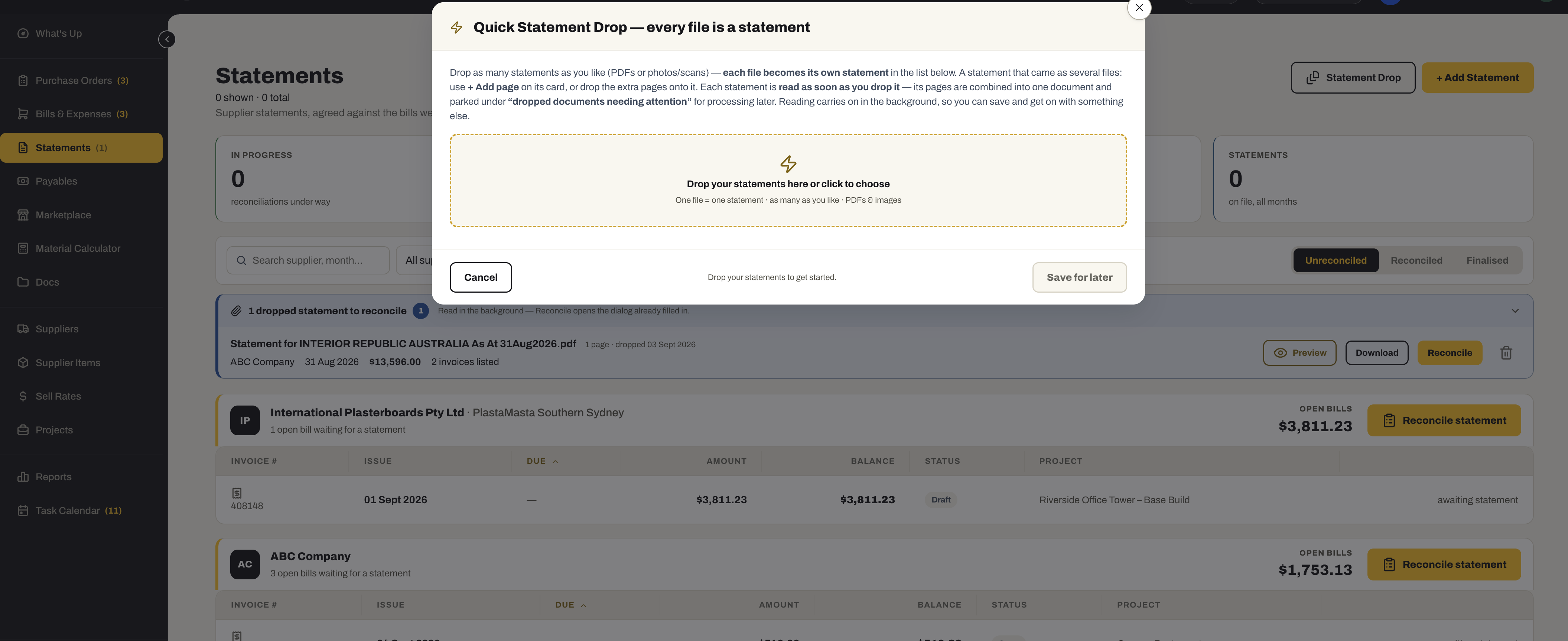
- Supplier statements read the same way — drop a pile and each file becomes its own statement — then reconciled against the bills
- Save it, mark it ready to pay, or save and pay it on the statement
02 / Payables
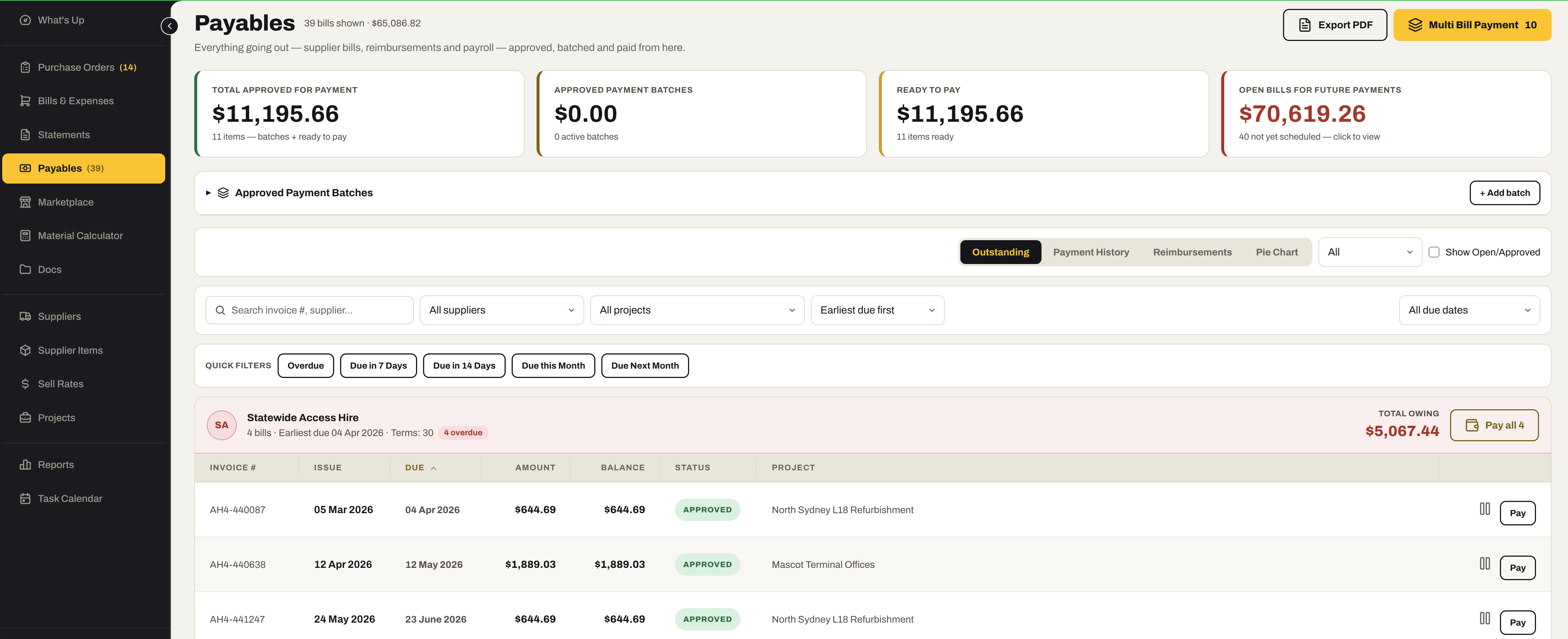
Know what you owe, and when.
Every bill, expense and credit against the job and the supplier it belongs to, with the balance worked out for you.
- Bills and out-of-pocket expenses, split across accounts with the coding done
- Payment runs — the bills that are due, paid together
- Credits and returns that reduce a balance without money moving
- Supplier statements reconciled — the supplier’s version agreed with yours
- A spend breakdown by supplier and by job
- Multi Bill Payment — pay every approved bill for a supplier, or a batch of them, in one go
03 / Orders
Order against the job.
Purchase orders, suppliers and your item library, all pointing at the project and the supplier they belong to.
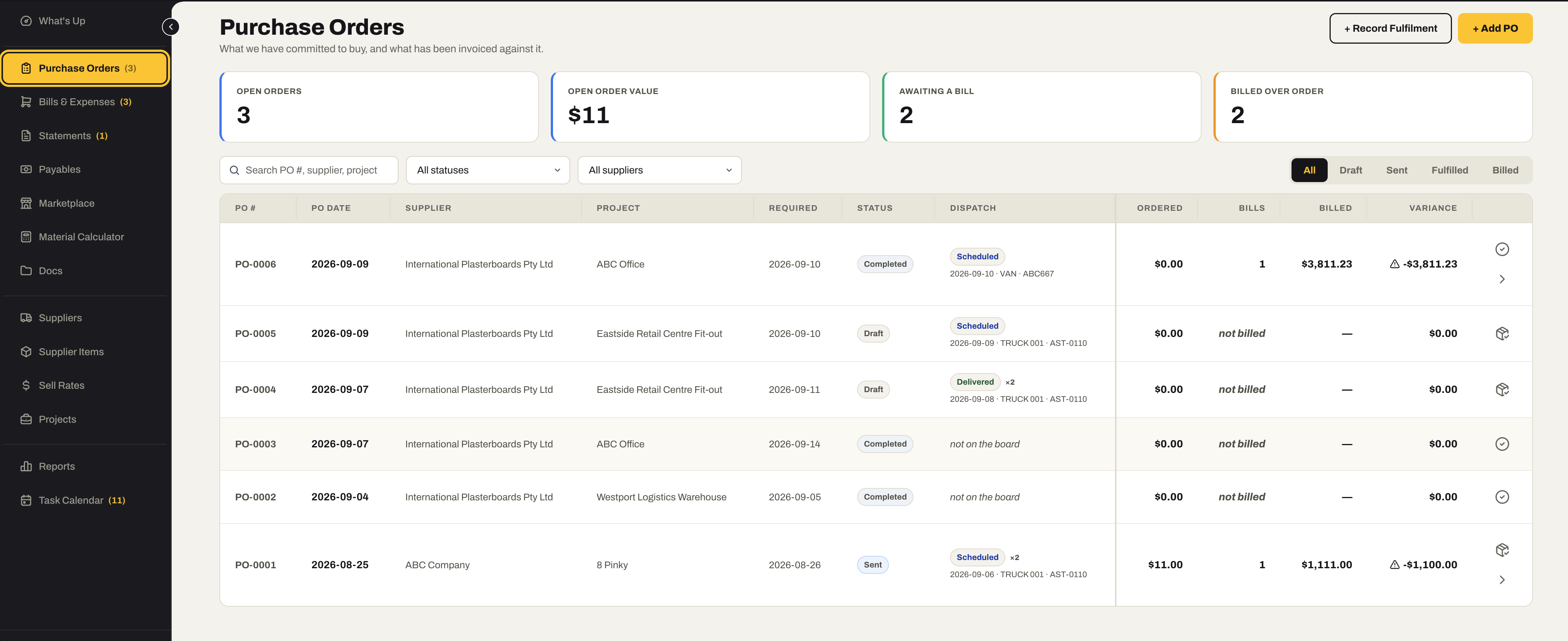
- Purchase orders for a contract or for general spend, with the date required
- A supplier database with contacts, categories and payment defaults
- Supplier Items carrying the price you buy at and the Sell Rates you quote at
- Price history on a Supplier Item, so a rise is visible rather than absorbed
- Supplier Items imported and exported in bulk
- Each order’s dispatch beside it — scheduled or delivered on which truck, or not yet on the board
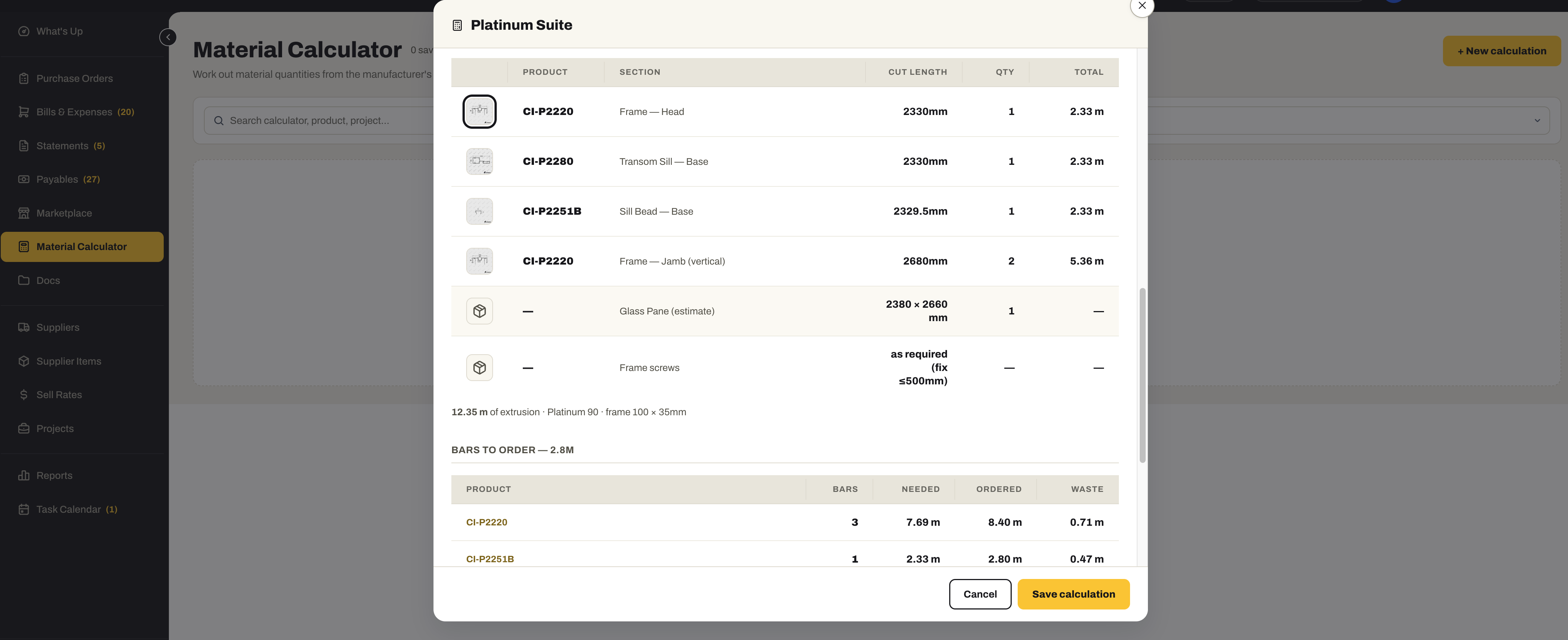
- A Material Calculator that works quantities out from the manufacturer’s product data — cut lengths, bars to order, waste
Your data
AI that works on your records, for your business.
SubbieTRAC uses AI to read supplier invoices and to find documents. It works on your own records, inside your own account. We do not share your data with other businesses and we do not sell it — nothing leaves your account unless you choose to share it.
Also for Purchasing
The dashboard and the reports have pages of their own.
- What's UpThe Purchasing dashboardThe morning screen for this module — the numbers that matter, and every tile a click from the register behind it. See the Purchasing row
- ReportsPurchasing reportsFilter in place, then export or print to PDF — for the Monday meeting, the bank, or the question of why last quarter went the way it did. See the Purchasing row
Ready to stop typing invoices?
Drop the next supplier invoice into SubbieTRAC and see it read into a bill, against the job it belongs to.
No credit card required. We’ll set up your account and send your login details.