
Tenders
Win more work. Manage every opportunity.
Track enquiries, prepare quotes and manage your tender pipeline from one connected workspace.
Everything in Tenders
01 / Tender management
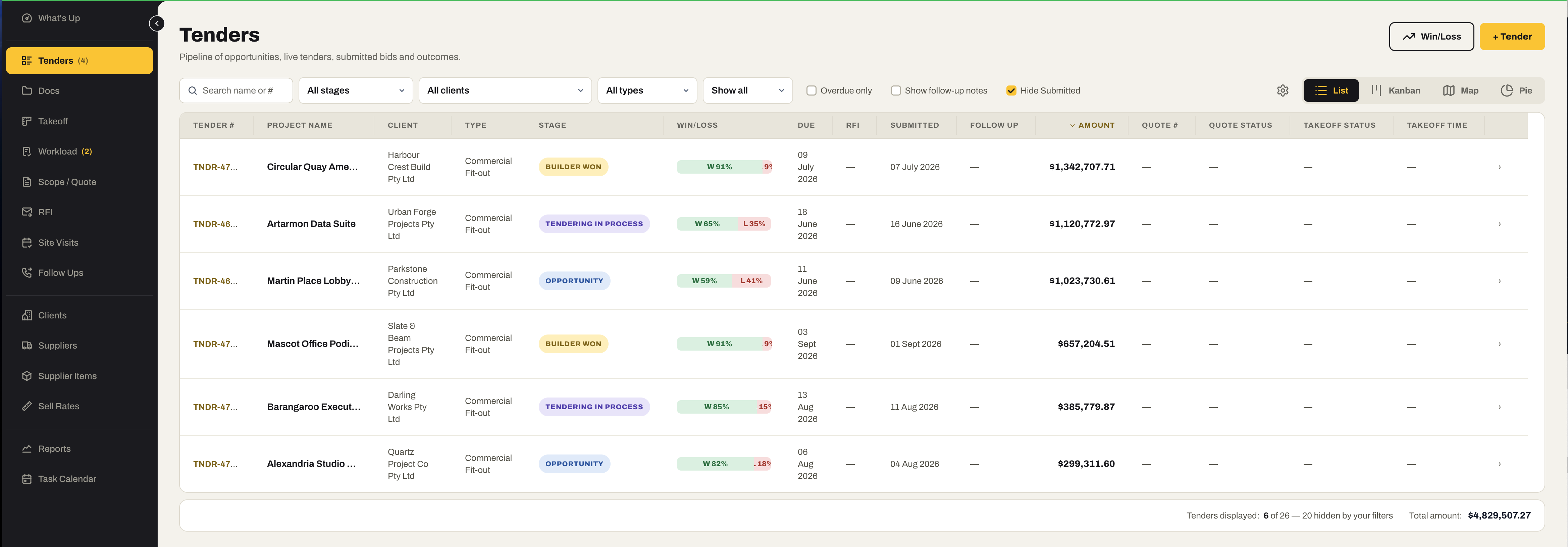
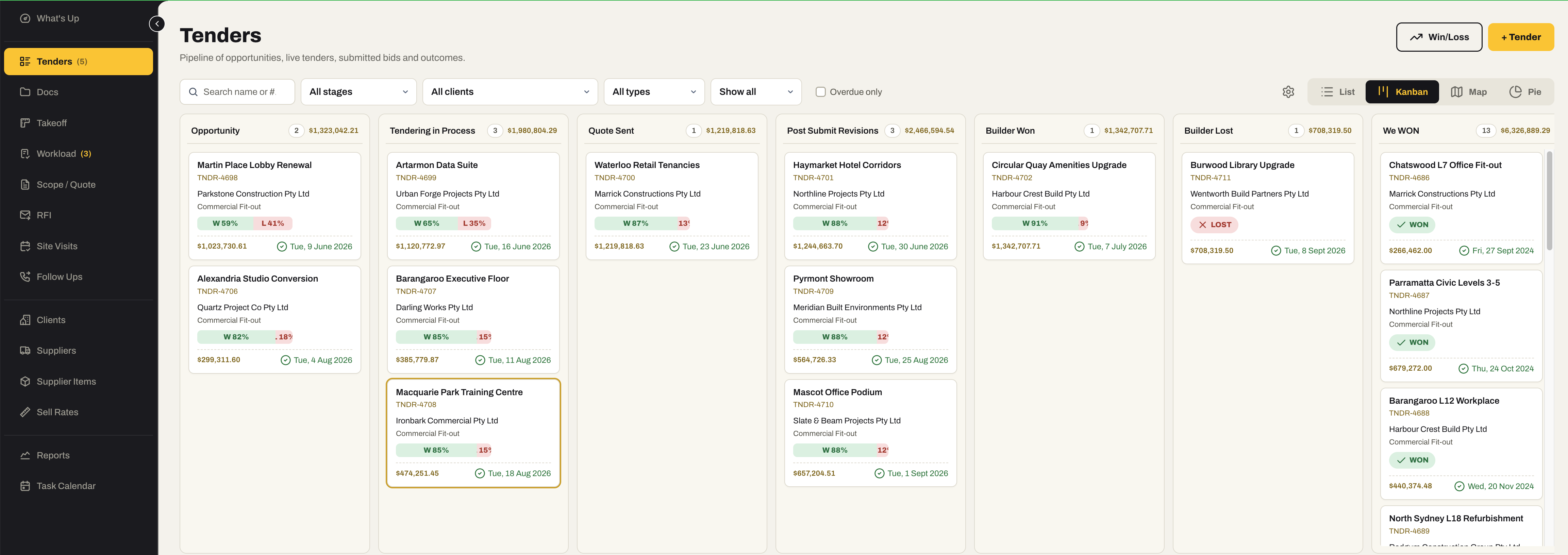
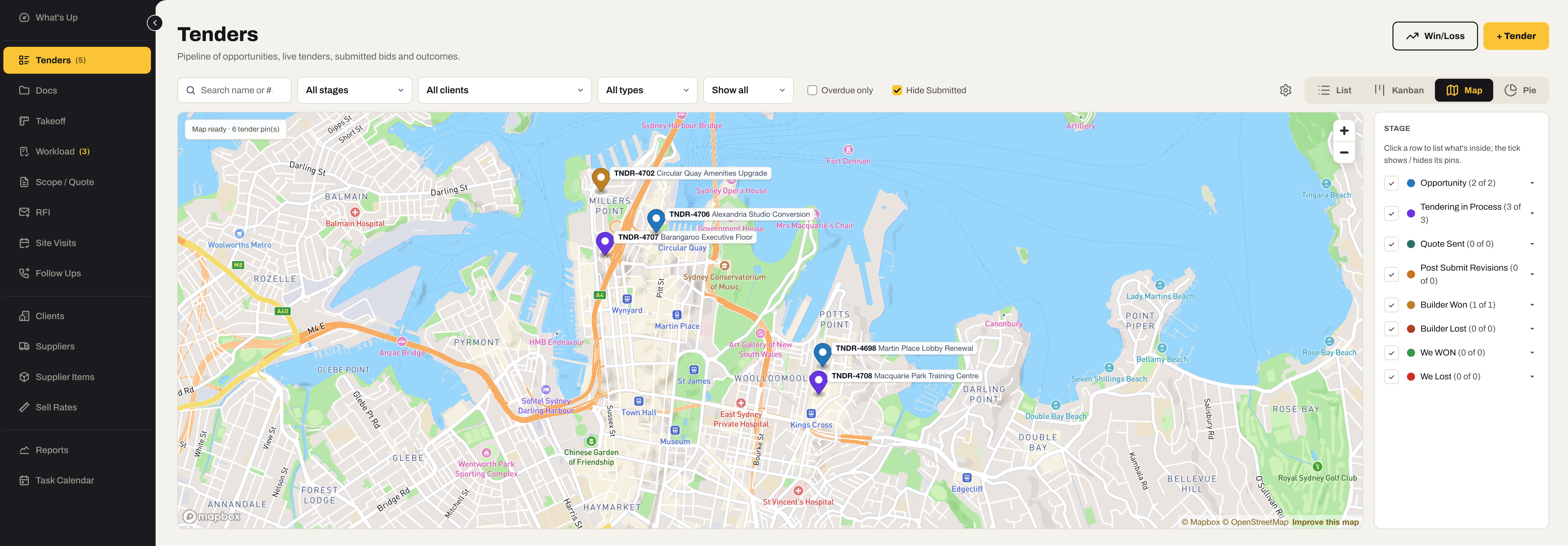
Every opportunity, in whichever view suits the question.
One register of everything you have been asked to price — as a list, a graph, a kanban board or a map — with the numbers that tell you which ones are worth the hours.
- List, graph, kanban and map views of the same pipeline — switch to suit the question
- Win/loss predictions on every tender, blending the builder’s history, the estimator’s record, the project type and the stage
- Duration tracked per tender — estimated and actual — so you know what each bid really cost you to produce
- Won? Transfer the tender to a live project in one step, with every document, quote and conversation carried across
- Find the tender version later and see exactly what was allowed for — and what was not
- Client, type, stage, due date, value, probability and quote status on every row
02 / Document management
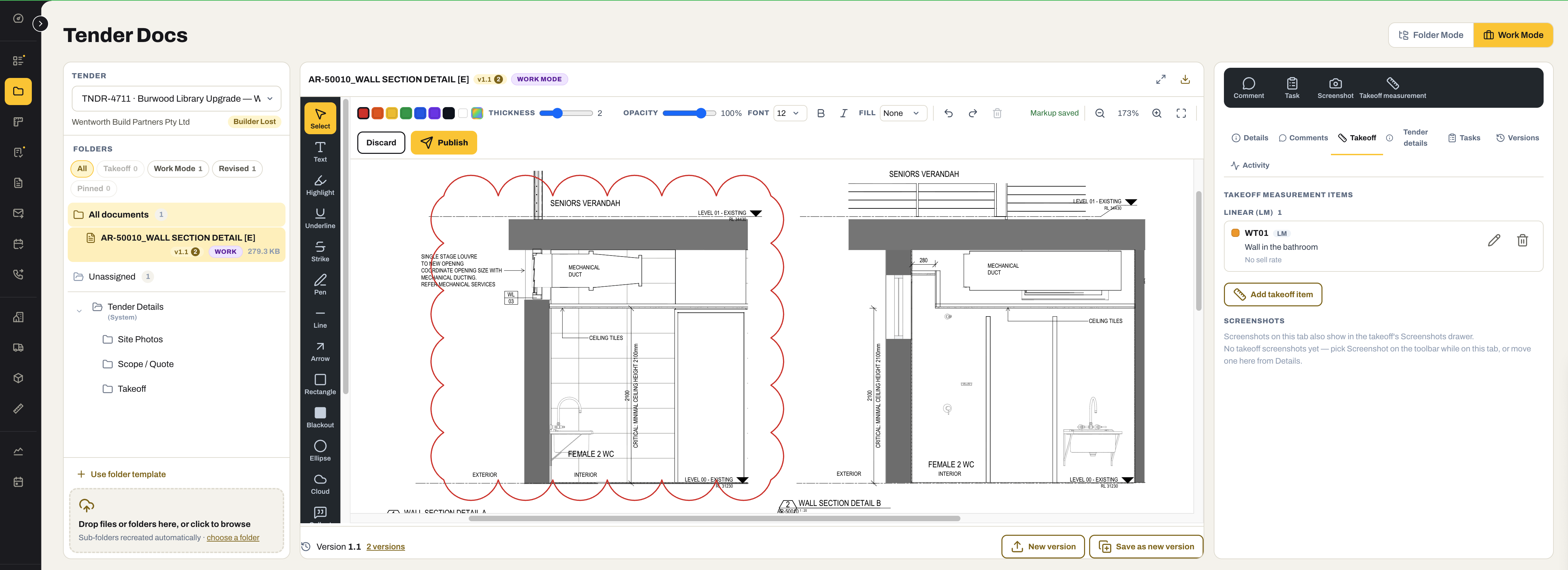
Every tender document in the one system.
Drawings, specifications, addenda, site photos and correspondence, filed against the tender they belong to — no separate drive, no hunting through email for the latest set.
- All tender documents stored inside SubbieTRAC — nothing lives in a shared drive somewhere else
- Share a set with the team, a supplier or the builder without exporting it first
- Every upload — site photos included — lands in one place, against the right tender
- Photos and documents taken on the Site app go straight into the system
- Version history and file types with their own numbering, so the current set is never in doubt
- Work Mode — cloud, highlight, arrow, text and blackout markups on the drawing itself, saved as a new version, with comments and tasks against the document
03 / Takeoff
Measure together. Quote as you go.
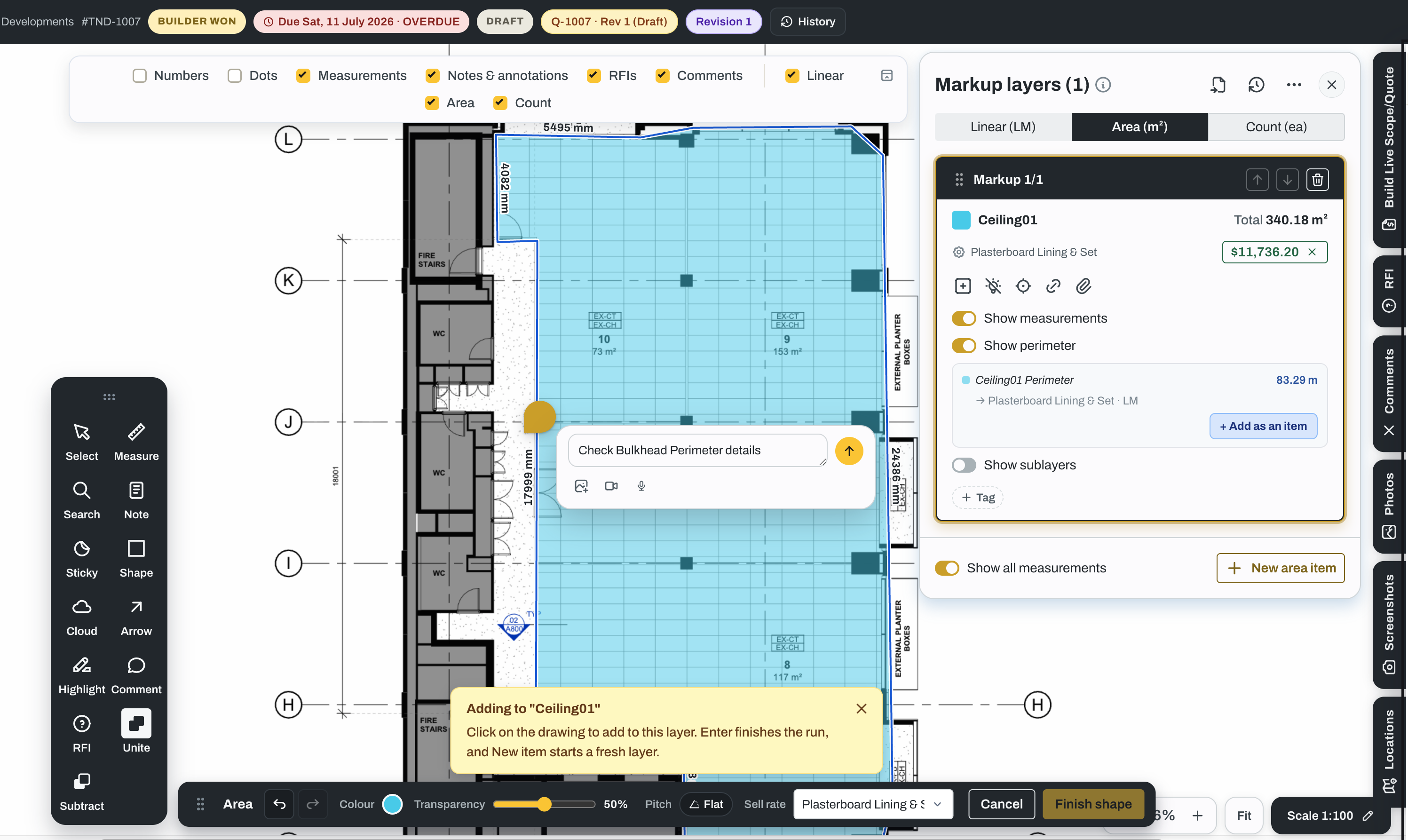
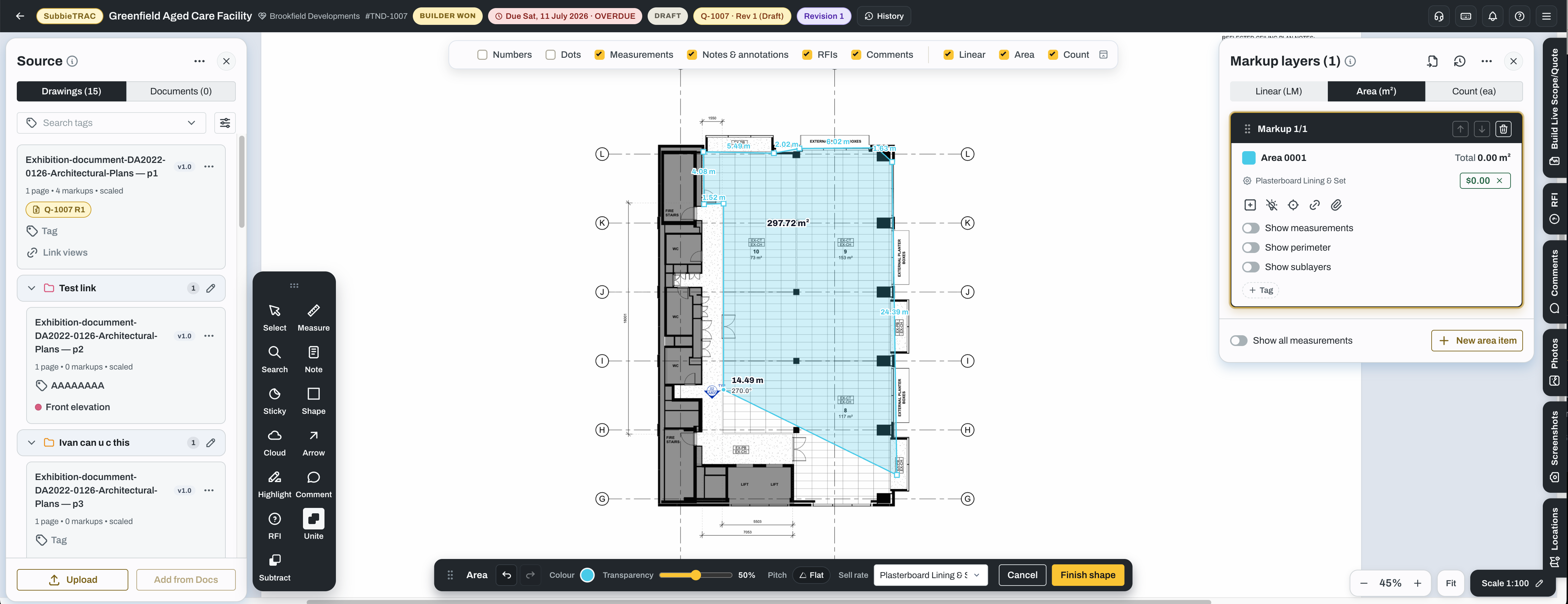
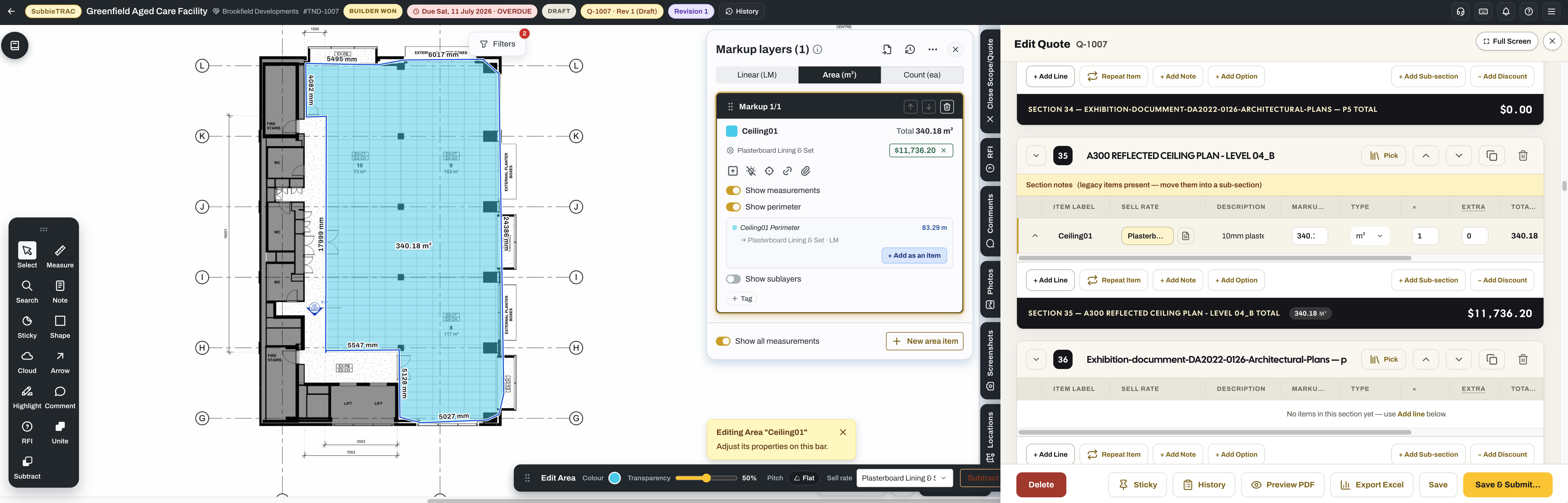
A takeoff several people can work in at the same time, on the same drawing, seeing each other move — with the quote building itself beside the drawing as the markups go down.
- Multiple people mark up the same drawing at the same time, and see each other’s cursors and markups live
- The quote is generated as you measure and sits inside the takeoff — drawing and quote side by side
- Sell Rates and Supplier Items managed in one place and linked straight to markups
- Version control — every submitted takeoff frozen as the version it was priced from
- Raise an RFI straight from the drawing, at the spot the question is about
- Linear, area and count to scale, layers per trade package, comments pinned to the drawing — and a long tail of smaller tools that make the work faster
04 / RFI management
Ask the question once. Keep the answer forever.
Requests for information raised, chased and answered as a team — and carried into the live project, so the discussion that shaped the price is still there when the work starts.
- RFIs managed as a team — who raised it, who is chasing it, what came back and when
- Site staff kept notified, so the answer reaches the people it changes
- Raise an RFI from the takeoff drawing, at the exact spot in question
- RFI history transfers to the live project — the tender-stage discussions are there when you build
- Status from open to answered, with the report to match
05 / Site visits
Enter it once, on site.
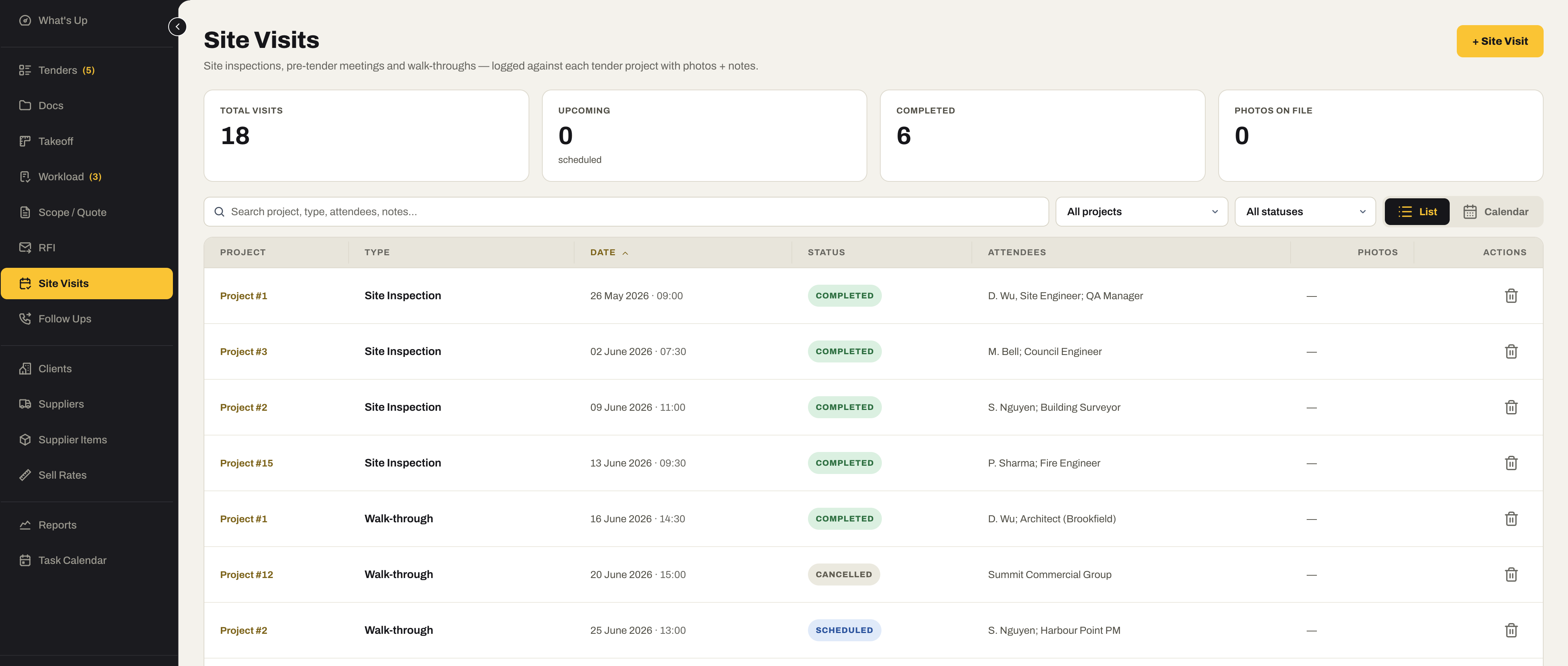
Schedule the visit, record what you found, and have it in the office before you are back in the car — no notebook to type up later.
- Schedule site visits against the tender and see them on the phone
- Keep logs, notes and photos from the visit against the tender
- No double entry — recorded on the Site app, it is already in the office system
- The site visit register on the Tenders dashboard, so nothing scheduled is missed
06 / Workload
Know what your estimators have on before you say yes.
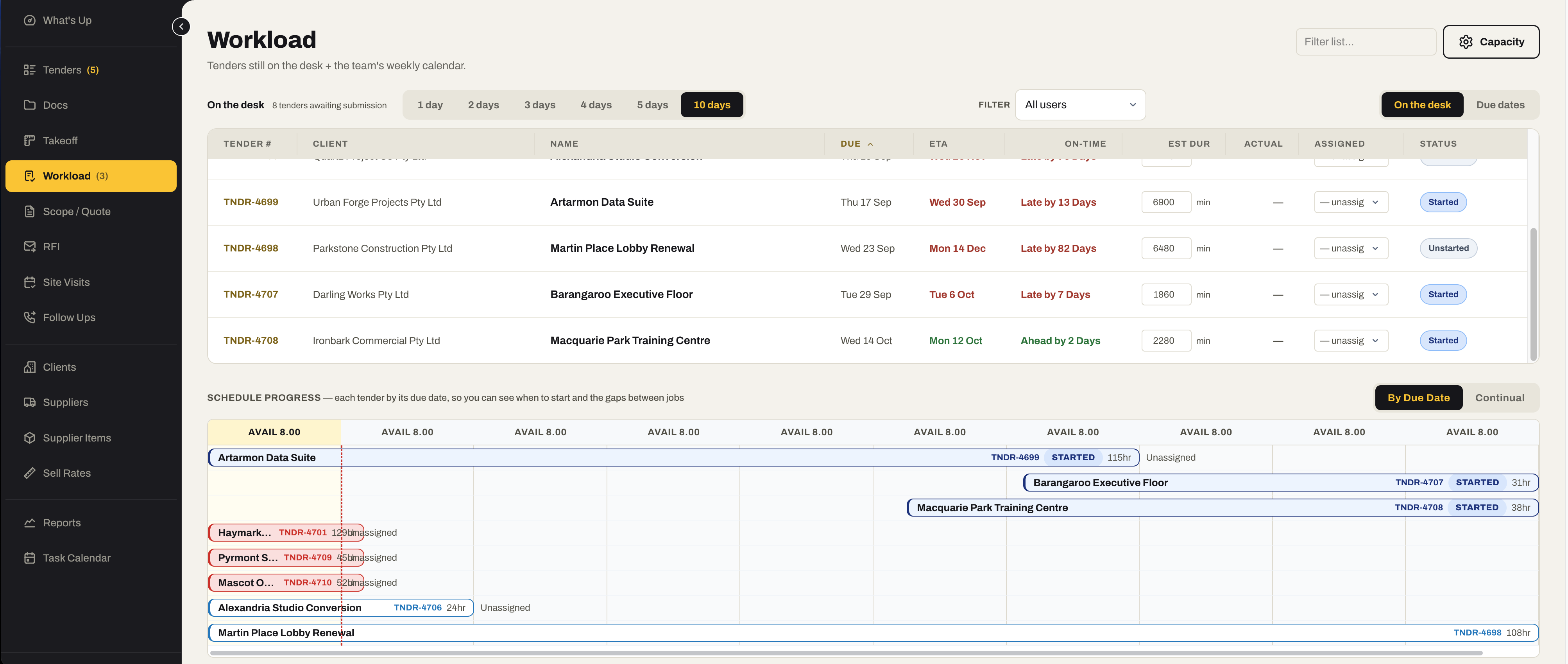
Every tender on the desk, who is pricing it, how long it will take and when it will be ready — one screen, so the next invitation is accepted with open eyes.
- Tender workload per team member, against their available hours
- Predicted submission dates — the ETA for each tender against its due date
- See who is pricing what, live, with started / finishing-off status
- Estimated versus actual duration per tender, so the team’s capacity is a number rather than a feeling
- One place, so nothing is lost in missed communication
07 / Task calendar
Every tender task, on one calendar.
Site visits, submission deadlines, follow-ups and the small things in between, shared across the team so nothing is done twice or not at all.
- Tasks associated with each tender, on a calendar the whole team sees
- Share tasks with team members and see who owns what
- No double-ups and no missed tasks — one list, not five inboxes
- A quote sent creates its follow-up task automatically
08 / Scope / Quote
The quote that writes itself from the takeoff.
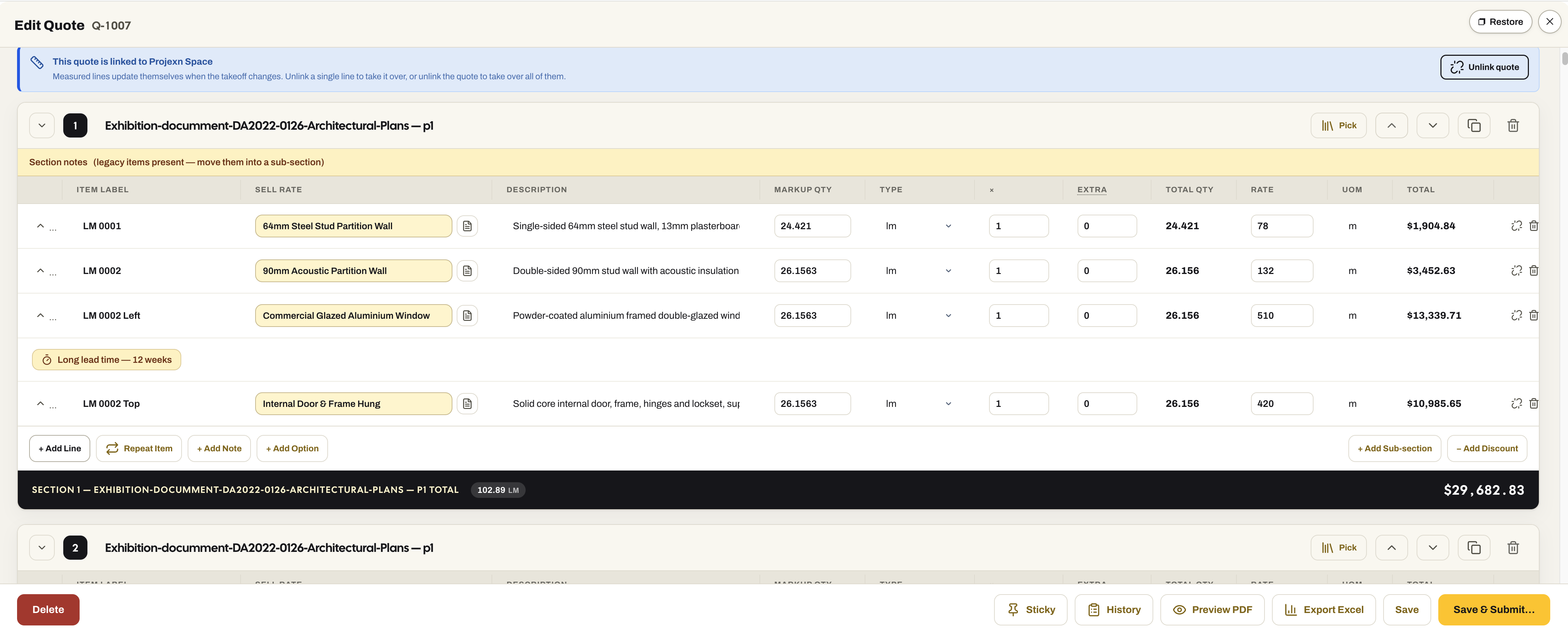
Generated straight from the measurements or built by hand, every quote in one register with its revisions, its status and the terms it went out with.
- Generate the quote directly from the takeoff — quantities already in, Sell Rates already applied
- Or build one manually, for the job that has no drawing
- See every quote in one place, by pipeline stage, revision and status
- Terms, exclusions and lead times set once and shown on every quote automatically
- Revision control — R1, R2 and post-submit revisions kept in order
- Sections, options priced separately, discounts, and PDF or Excel out
- Long lead times flagged on the line, so the client sees them before they bite
09 / Follow-ups
Chase every quote. Win more of them.
A quote that is never followed up is a coin toss. Every sent quote gets its follow-up schedule, and every call is recorded against it.
- Sending a quote creates its follow-up task automatically
- Every chase-up recorded — who, when, what was said — against the tender
- Overdue follow-ups on the dashboard, so nothing quietly goes cold
- The follow-up schedule as a report across the whole pipeline
10 / Suppliers
Your suppliers, their prices, your Sell Rates.
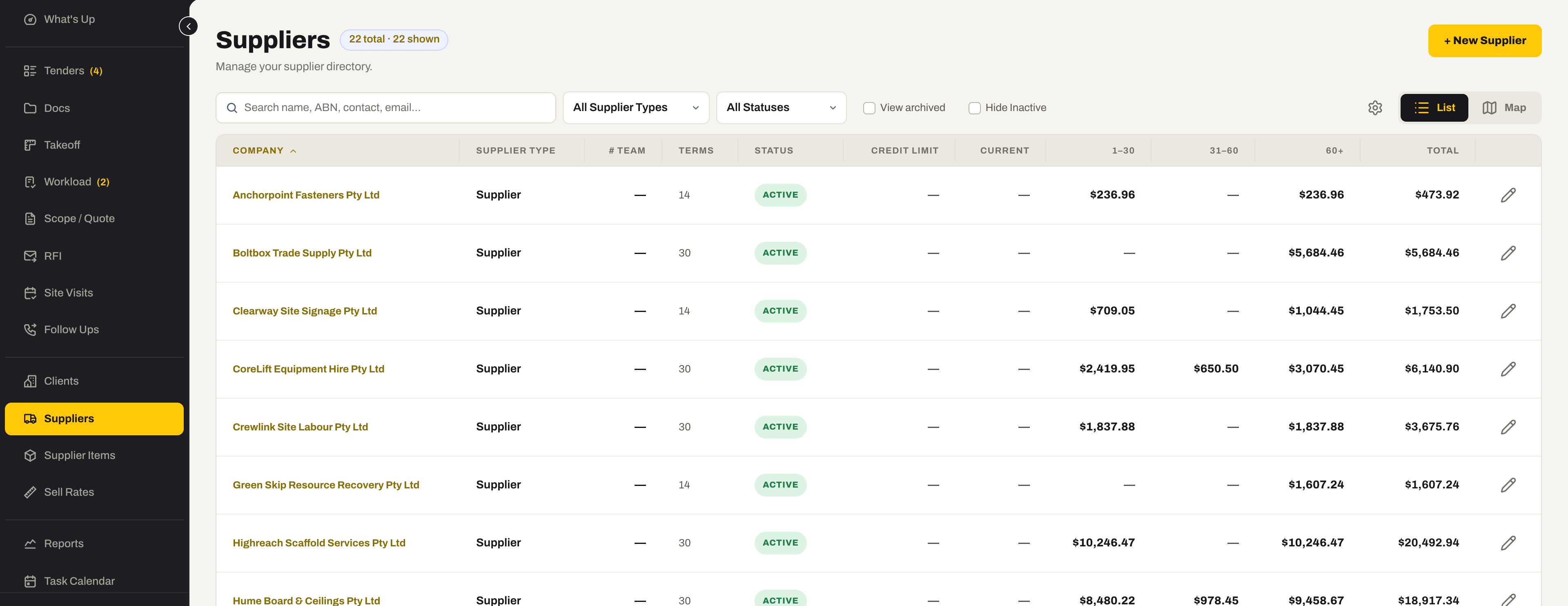
A supplier directory with the items you buy and the price you pay — feeding the Sell Rates you quote with, so a price rise reaches the next quote rather than the next invoice.
- A supplier directory with contacts, terms and credit limits — list or map
- Supplier Items with your buy price, feeding your Sell Rates
- Price history per item, so a rise is visible rather than absorbed
- Bulk import and export of the item library
- A supplier price comparison report across the pipeline
11 / Sell Rates & Supplier Items
Price it once. Quote it everywhere.
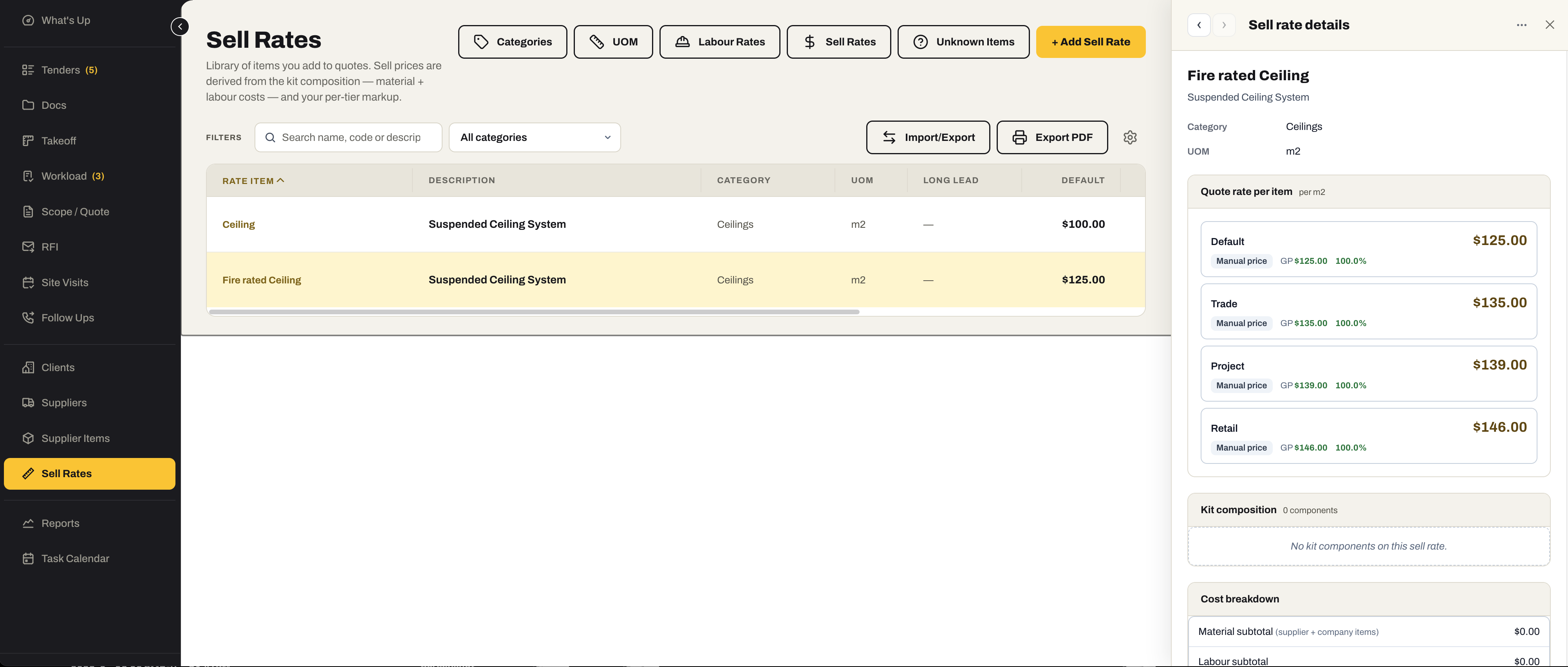
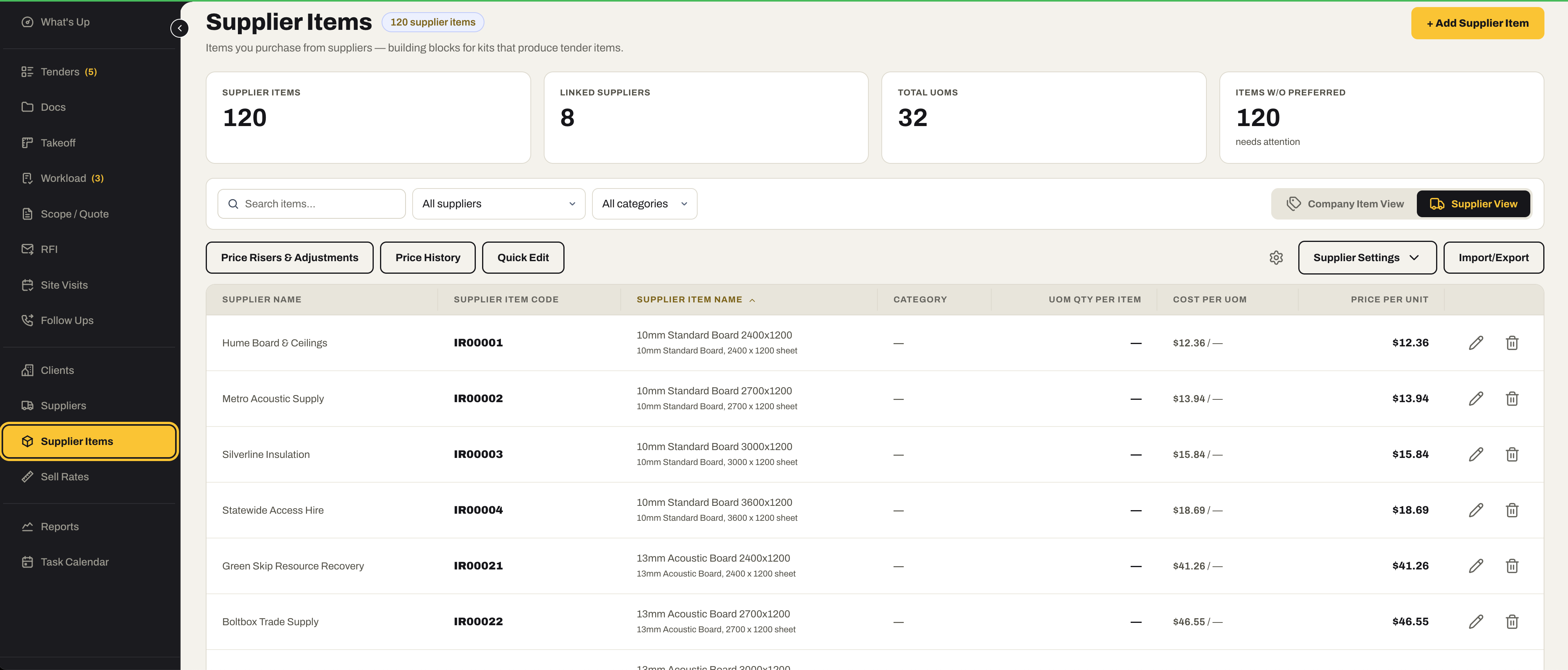
Your Sell Rates are the library every quote and every takeoff prices from — built up from Supplier Items and labour, with a rate per pricing tier — so a price change reaches the next quote rather than the next invoice.
- Sell Rates by category and unit, with a quote rate per tier — default, trade, project and retail
- Kit composition — a Sell Rate built from Supplier Items and labour, with the cost breakdown and margin visible
- Supplier Items — the things you buy, by supplier, with code, unit cost and price per unit
- Price risers and adjustments across the library, and price history per item
- Company item view or supplier view, quick edit, import and export
- Long-lead items flagged, so the quote carries the warning
12 / Clients
Know who you win with.
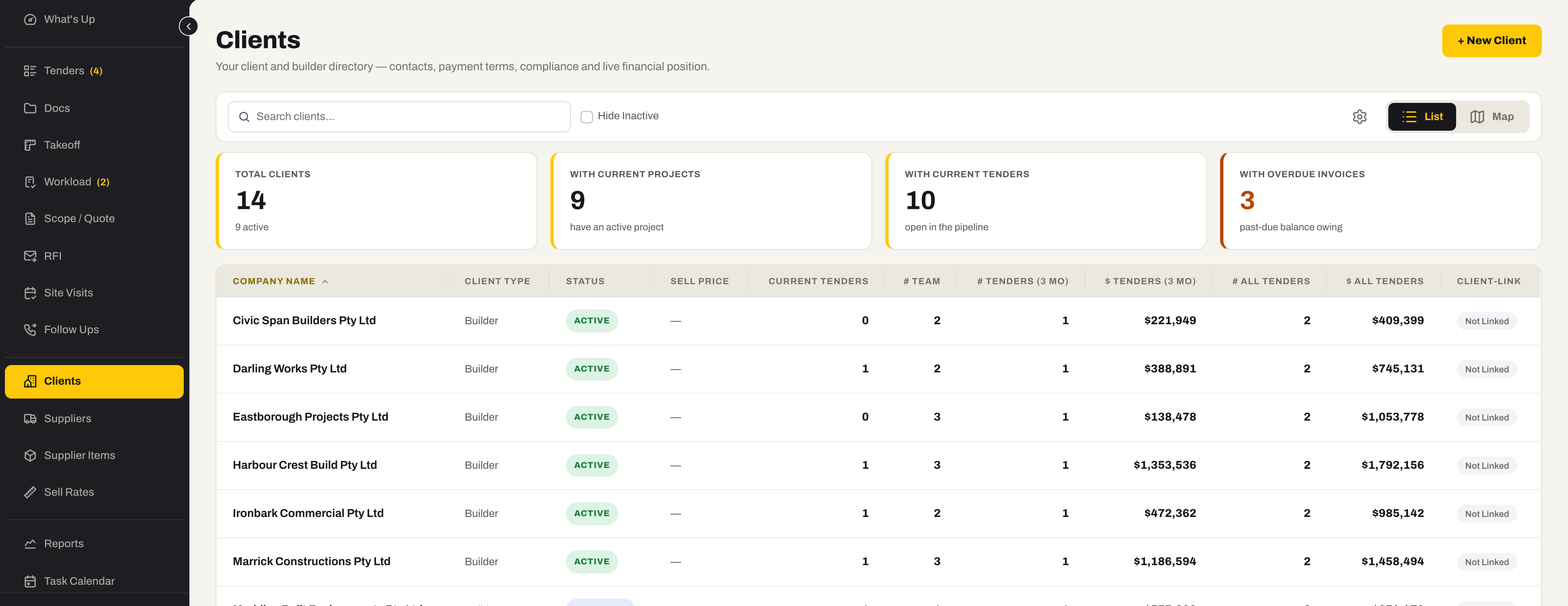
Every builder and client with their tenders, their projects, their payment behaviour and what they are worth to you — the directory and the track record in one place.
- Client and builder directory with contacts, payment terms and compliance
- Tenders and value per client, current and all time, on the one screen
- Current projects and overdue invoices beside the pipeline, so you price the client as well as the job
- List or map, with a client performance report behind it
Also for Tenders
The dashboard and the reports have pages of their own.
- What's UpThe Tenders dashboardThe morning screen for this module — the numbers that matter, and every tile a click from the register behind it. See the Tenders row
- ReportsFourteen reportsFilter in place, then export or print to PDF — for the Monday meeting, the bank, or the question of why last quarter went the way it did. See the Tenders row
Ready to win your next project?
Replace spreadsheets, emails and disconnected tools with one tender workflow built for subcontractors.
No credit card required. We’ll set up your account and send your login details.